
1. Connect your bank account
Before you start
Have these ready:
- Your bank account login credentials
- Your Gmail login credentials for the inbox you use for business invoices and receipts (you will authorize Google access during setup)
Go to: My Integrations — https://app.gsi-tech.ai/dashboard/my-integrations
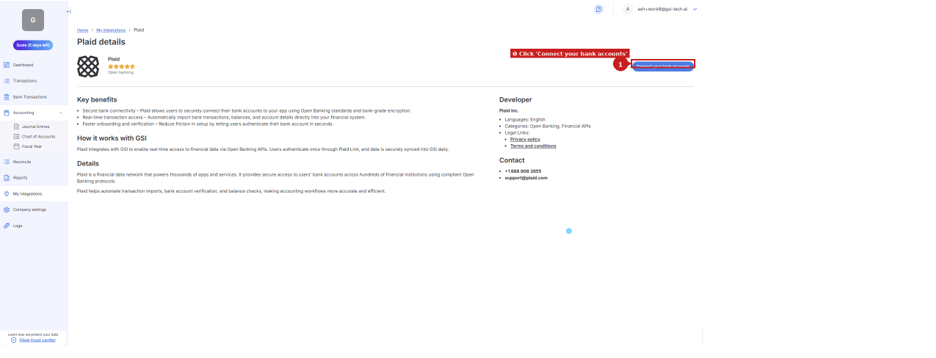
Step | What to do |
|---|---|
1. Open My Integrations | Click 'My Integrations' in the left sidebar. |
2. Click Connect on Bank Account | Press the blue 'Connect' button on the Bank Account card (❶ in screenshot). A Plaid window opens. |
3. Search for your bank | Type your bank name and click it from the list. |
4. Enter your bank login | Enter your online banking username and password. |
5. Select accounts to sync | Choose all accounts your business uses: checking, savings, credit cards. |
6. Confirm the connection | The Bank Account card shows green 'Connected'. Transactions will appear in Bank Transactions within minutes. |
After connecting
- Click 'Bank Transactions' in the sidebar — your recent history will appear.
- New transactions pull in automatically every day from this point forward.
Next → Connect Gmail
Last updated: 6/8/26, 3:30 PM