
3. Enter your Opening Balance Sheet
The Opening Balance Sheet is the financial starting point — what your accounts were worth on the day you started using GSI. Without it, some of your reports will be inaccurate. You can add or edit it later.
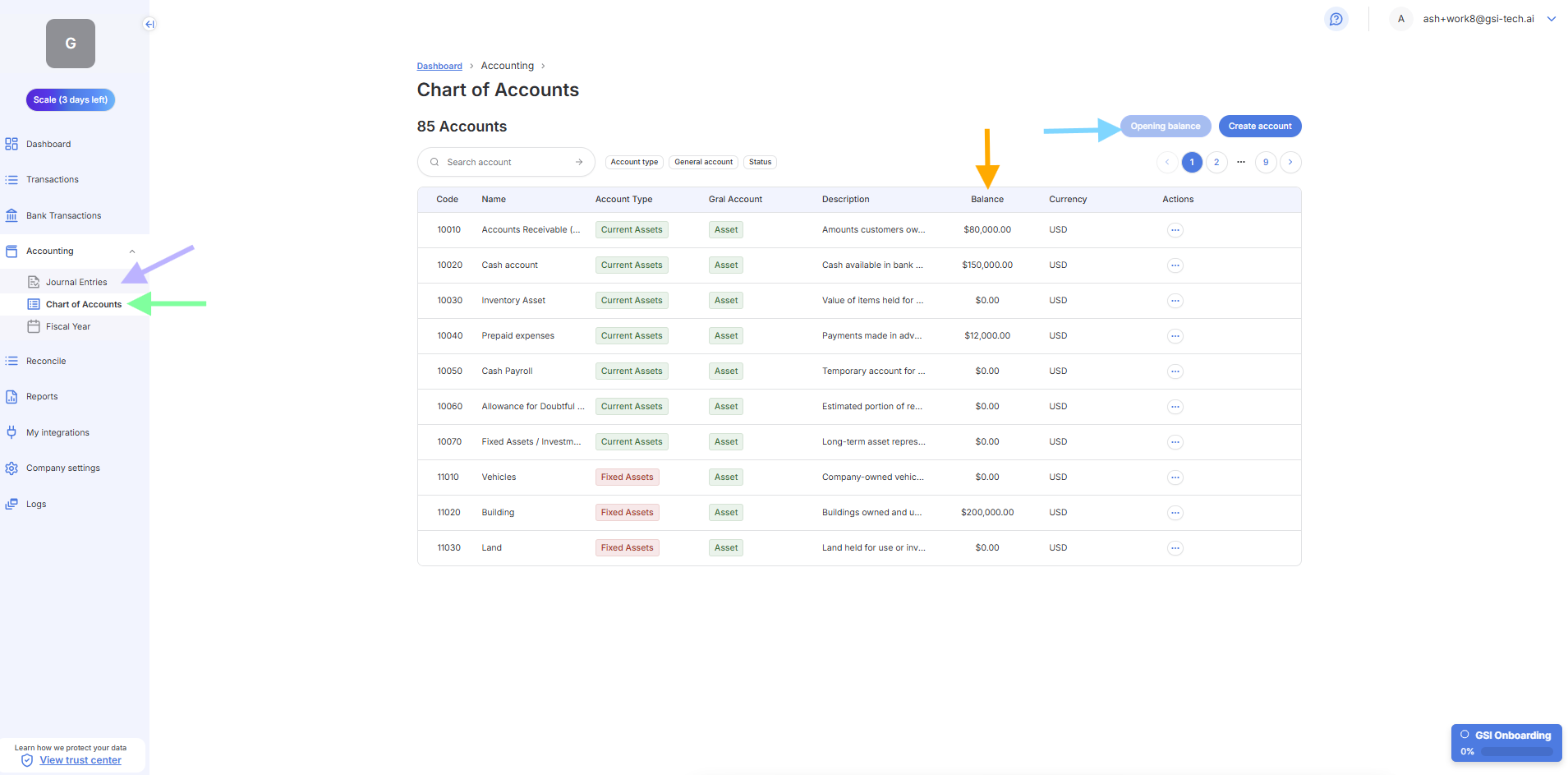
Go to: Accounting › Chart of Accounts — https://app.gsi-tech.ai/dashboard/accounting/chart-of-accounts
Step | What to do |
|---|---|
1. Open Chart of Accounts | Click 'Accounting' in the sidebar, then 'Chart of Accounts' from the sub-menu (green arrow in screenshot). |
2. Click Opening Balance | Click the 'Opening Balance' button at the top right of the page (blue arrow in screenshot). |
3. Enter your cash balance | Find account 10020 'Cash account' (see orange arrow in screenshot). Enter the balance in your business bank account on the day you signed up. |
4. Enter other balances if applicable | Enter Accounts Receivable (money clients owe you but have not paid yet) under 10010. Enter loans under the relevant liability account. Enter equipment or property if applicable. |
5. Save | Save the entries. GSI will propose a Journal Entry to reflect those balances in your reports. Click 'Accounting' then 'Journal Entries' to approve it (purple arrow in screenshot). |
Not sure what to enter?
- Ask your accountant for your most recent balance sheet — it has all the numbers.
- Contact GSI if you do not have an accountant or are unsure about what to include.
- You can update opening balances at any time.
Next → Check Company Settings